Key takeaways
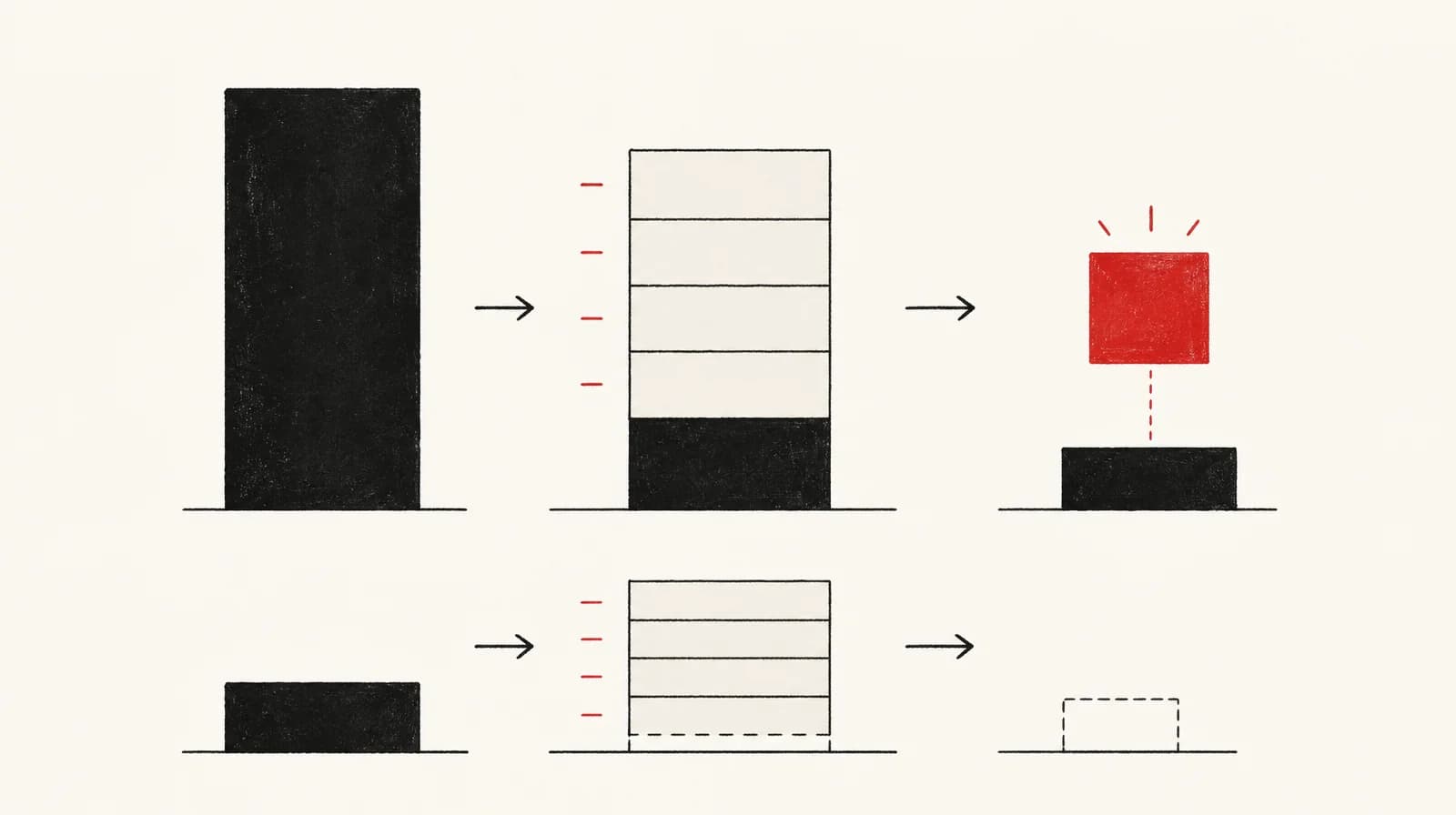
In SAP's intra-company stock transfer, the two-step procedure creates stock in transit belonging to the receiving plant.
That is system accounting, not legal title, insurance or carrier liability.
What you are recording
A stock transfer order is the record for moving units you already hold from one location to another: a warehouse, a third-party logistics warehouse (3PL), a pop-up or a store. A supplier order brings in units that were not already in those locations.
SAP uses a different name for the purchase-order form of this record. In Describing Stock Transport Orders in SAP, SAP Learning calls a stock transport order "a Purchase Order used to request or instruct a plant to transport stock from one plant to another within the same corporate enterprise."
The posting underneath is the part you can use without SAP. On Performing Stock Transfers Between Storage Locations, SAP Learning states that a stock transfer or transfer posting "consists of a goods issue from the issuing point and a goods receipt at the receiving point." Those two postings, and the quantity between them, are the record.
In Describing Stock Transport Orders in SAP, SAP Learning says a stock transfer does not require an order. A stock transport order is a type of purchase order, and it can monitor stock in transit. If one person says transfer order and another says STO, ask which of those two they mean before you compare screens.
Where the count fails
Two count failures follow if you change only one location.
The first is counting the units where they are not. Leave them on the origin after they have left, and that warehouse can allocate stock it no longer has. Add them to the destination on the day they leave, and the shop can sell stock that has not arrived.
The second is counting them in neither place. That follows when the origin falls on issue and the destination rises only on receipt, and no in-transit quantity is kept. SAP Learning says the two-step procedure posts the issue and the receipt separately, so you can monitor the quantity between those locations.
A total built only from location on-hand figures then falls by the quantity issued, and stays down until receipt. The warehouse no longer shows the units, and the destination does not show them yet.
One posting or two
A one-step post, as used in the example below, updates both locations in the same posting and leaves no separate quantity between them.
Use two steps when the goods will be out long enough for someone to allocate them badly, or when different people post the two ends. The SAP Service and Asset Manager inventory clerk guide says the two-step stock transfer is performed by two users. A warehouse issuing and a 3PL receiving are that pair when they post separately. One posting fits a same-day move only if the destination count can rise without a separate receipt.
On Identifying the Goods Movements for an Intra-Company Stock Transfer, SAP Learning says that if you use the two-step procedure to post the goods movements, stock in transit is created belonging to the receiving plant. That is stock accounting on the transfer. It does not settle legal title, insurance, or carrier liability.
On Stock Transfer Using a Stock Transport Order, SAP Help Portal says the document type, NB or UB, determines the posting logic, including whether stock in transit is set up. Check the type on the order you posted against that page before you treat stock in transit as automatic.
Purchase, transfer, or a count correction
Add the stock at each location you hold, excluding any quantity already recorded there as in transit or as stock in transfer, then add a between-location quantity only if it is not already inside a location figure. That sum is the company total for the SKU. It applies to locations inside one company. In Performing Stock Transfers Between Storage Locations, movement type 313 receipts the issued quantity into stock in transfer at the receiving storage location, so that quantity must not be added again. A cross-company stock transport order, in the STO lesson, runs between different SAP companies and adds a billing document and an invoice. Do not expect one company's total to sit still if the units have left that company.
Inside one company, the three records move the total differently.
A supplier receipt adds units that were not in the total. The total rises.
A transfer should leave the total unchanged. The goods issue takes units out of the origin. The in-transit quantity, or the goods receipt, puts the same units back into the total. The total rises if a transfer is wrongly booked as a supplier receipt, if you receive without issuing, or if you receive and also leave the same units in transit.
A count correction changes a location figure and has no matching issue or receipt at another location you hold. The total changes. Use it when the shelf and the book disagree. Do not use it to send a carton: an adjustment at the origin drops the company total and leaves no open quantity for the destination to receive.
Twelve coats, checked by hand
These figures are invented so the arithmetic can be checked. They are not taken from a brand. One SKU, no sales and no other receipts, and a carried value of £40 a coat, held constant so value moves only when quantity moves.
The warehouse starts at 40 and the shop at 6, with nothing in transit, so the company total is 46. You request 12 for the shop before a regional sale. No posting has happened yet, so the counts stay at 40 and 6.
You then issue 12 in two steps.
| Stage | Warehouse | In transit | Shop | Company total | | --- | --- | --- | --- | --- | | Start | 40 | 0 | 6 | 46 | | After issue of 12 | 28 | 12 | 6 | 46 | | After receipt of 10 | 28 | 2 | 16 | 46 | | If the 2 are written off | 28 | 0 | 16 | 44 |
After the issue, in-transit value is 12 x £40 = £480. After the shop receives 10, in-transit value is £80. Those 2 coats stay on the transfer. They are not a reason to show 18 at the shop, and they are not a reason to put 2 back on the warehouse unless you know they never left or have come back.
A one-step post at the moment of issue would show warehouse 28 and shop 18, with no in-transit line. The company total would still be 46. The shop's available count would include 12 coats that have not arrived.
If the system has no in-transit quantity, an issue of 12 would show warehouse 28 and shop 6 until receipt. The two location totals would sum to 34. The 12 would exist only on the transfer record. If receipt adds only the quantity you confirm, a receipt of 10 takes the shop to 16 and leaves the other 2 off both location totals.
If the system has no in-transit line
Keep an open-transfer line that can rebuild the in-transit quantity:
- transfer ID
- origin and destination
- date created
- whether it has been issued
- quantity requested
- quantity issued
- quantity received
- quantity still open, which is issued minus received
A Shopify Community post, not Shopify documentation, describes the same problem: which transfers are still in progress, which were partly received, and whether any units were rejected. It suggests a ShopifyQL report with transfer ID, origin, destination, created date, ship status, total quantity and shipped quantity, filtered by ship status. Confirm those field names in Shopify's documentation before you build the query. Until then, the eight fields above are enough to stop the company total depending on a sum of location on-hand figures.
Where SAP has already set up stock in transit, through the two-step procedure or the document type, keep the open quantity as well. A receipt can be short of the issue. In-transit stock should then equal issued minus received: lower than the issue, and above zero while a shortage is unresolved. If it still equals the issued quantity, the receipt has not been posted.
Cancelling or receiving short
For a cancel or a short receipt, start from the requested quantity, the issued quantity and the received quantity. Those figures show which location count has moved, and what remains open.
Before the issue, neither location count has moved. Issued minus received is already zero, so closing the request does not set an open quantity. It stops the move before either location count changes.
After the issue, and before any receipt, the origin is already lower. Reversing the move means adding the issued quantity back to the origin and clearing the in-transit quantity. Do not receive it as well. Receiving it and reversing it puts the same coats in two places.
After a short receipt, received units stay at the destination. Only the remainder is open. In the example that remainder is 2. It can arrive later and be received. It can come back, and you reverse those 2 to the origin. Or it will not return, and you write off 2. Only the write-off changes the company total, from 46 to 44, and the £80 leaves with it. The community post lists rejected units separately from transfers still in progress and partial receipts, and says tracking them needs a structured approach.
If a 3PL posts the receipt, do not cancel by editing the warehouse available figure and assuming their book will follow. Correct the receipt where it was posted. A warehouse-only edit moves your count and leaves theirs unchanged.
What SAP calls the types
The Help Portal page already cited lists five ways to move stock between plants:
- stock transfer between plants in one step
- stock transfer between plants in two steps
- stock transport order without delivery
- stock transport order with delivery via shipping
- stock transport order with delivery and a billing document or invoice
The first two do not require the order. The last three are stock transport orders. The STO lesson adds a company split: intra-company means the supplying plant and the receiving plant are in the same SAP company, and cross-company means they are in different SAP companies. This article does not cover the configuration of either.
On that page, a stock transport order with delivery and a billing document uses goods issue 643 for two steps, or 645 for one step, and goods receipt 101. That mapping is for this stock transport order. Check the movement type on the order you posted against the page before you treat 643 as the goods issue on every two-step transfer.
The SAP Service and Asset Manager inventory clerk guide, Working with Stock Transfers and Transfer Posting, lists movement types for that app: 301 for plant to plant, 311 for storage location to storage location, 303/305 and 313/315 for two-step transfers, and 411 for a one-step transfer posting. Movement type 313 is not limited to that app. Performing Stock Transfers Between Storage Locations posts stock removal with 313, in one material document: a goods issue from the issuing storage location and a receipt into stock in transfer at the receiving storage location. The app list does not replace the Help Portal methods above.
Sources
- Stock Transfer Using a Stock Transport Order help.sap.com Lists five ways to move stock between plants: Stock Transfer Between Plants in One Step; Stock Transfer Between Plants in Two Steps; Stock Transport Order Without Delivery; Stock Transport Order with Delivery via Shipping; Stock Transport Order with Delivery and Billing Document/Invoice.
- Performing Stock Transfers Between Storage Locations learning.sap.com In SAP Learning's lesson on storage location-to-storage location stock transfers using the two-step procedure, stock removal is posted with movement type 313. This is in the SAP Cloud ERP inventory management course, not the SAP Service and Asset Manager app. This contradicts the claim that 313 is limited to that app.
- Identifying the Goods Movements for an Intra-Company Stock Transfer learning.sap.com In SAP's intra-company stock transfer lesson, using the two-step procedure to post the goods movements creates stock in transit that belongs to the receiving plant.
- Working with Stock Transfers and Transfer Posting help.sap.com Lists movement types 301 (plant to plant), 311 (storage location to storage location), 303/305 and 313/315 (two-step) and 411 (one-step transfer posting). The two-step stock transfer is performed by two users.
- How to track inventory transfers across multiple locations community.shopify.com A community post, not official documentation.